Send Faxes via the Web or Email
You can send faxes directly from the Inbox or by email. No matter which method you use, a copy of each fax you send will be saved in the Sent folder in the Inbox. You'll also receive an email receipt notifying you if your fax was successfully sent—or if it failed and the reason.
Send Faxes via the Web
When using MyFax, you can send files from the MyFax web portal—similar to attaching documents to an email—along with cover page, if you wish. MyFax supports a wide variety of file formats that includes most common programs.
- Log into MyFax Central at https://central.myfax.com/login.aspx.
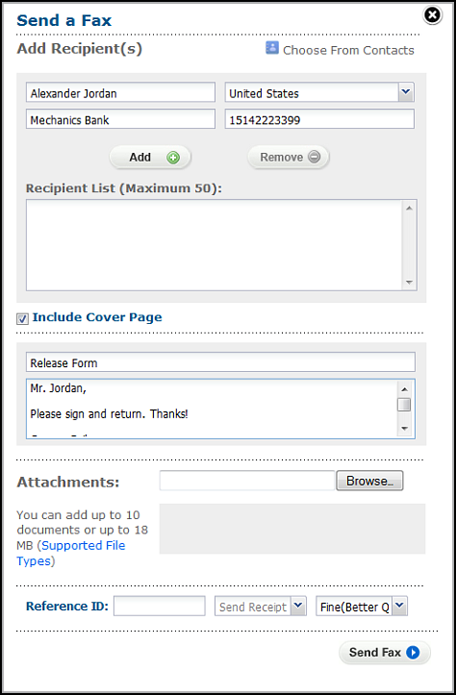
- Click SEND FAXES to open the Send a Fax form. (You can also open this form by using the Compose button in your inbox.)
- Add recipient(s) by filling in the following fields:
- Name
- Company
- Country
- Number
Note: The country selected in the Country drop-down menu provides the correct dialing prefix in the Number field. Also, be sure to remove all formatting in the Number field. For example, 1-202-555-1234 should be entered as 12025551234.
- Click Add.
- To add multiple recipients, repeat steps 3 - 5 for each recipient.
- If Include Cover Page is checked, enter ooth a subject and message (in the appropriate text- boxes that appear).
- Click the Browse button to attach any documents.
- For any of the following:
Enter a reference ID, if the fax relates to a particular issue, case, or campaign.
Click the Send Email drop-down arrow, and select the address in which to send a confirmation receipt.
Click the next drop-down arrow to select the quality of the fax transmission.
- Click Send Fax.
Tip: Alternatively, click Choose From Contacts to select a recipient from the MyFax address book. The fields listed above auto-fill.
Send Faxes via Email
You can send a fax from any standard email program—or by using a web-based email service like Yahoo or Gmail—by creating an email and attaching up to 10 files (20MB maximum) you want to fax. (If you attach multiple files, MyFax combines the files into one fax in the order they were attached to the email.)
To do so:
- Open your email program, and create a new email message.
Note: You must send the email from an email address in your Send-Email Addresses account preference (see Update Account Preferences).
- In the To field, enter the recipient’s fax number, followed by @send.myfax.com—or use any of the following examples shown below.
- To send to the US fax number +1 323 555 1234, type 13235551234@send.myfax.com, where 1 equals the country code; 323, the area code; and 5551234, the fax number.
- To send to the UK number +44 (0)20 7555 1234, type 442075551234@send.myfax.com, where 44 equals the country code; 207, the area code; and 5551234, equals the fax number.
- Attach up to 10 files you want to fax to your outgoing email message (maximum 20MB).
- To include a cover page, type the cover-page text in the body of the email message.
- Send the email.